
For years, our core work at Beyondspace has been building solutions that streamline the Squarespace editor and bypass platform limits - helping designers and site owners move faster without manual workarounds.
Now, we have rebuilt the Beyondspace lineup directly into the native Squarespace editor - and bundled every single native block and editor unlock into one unified Ground Control Pro plan.
Once activated, you get native, visual in-editor tools with zero manual code setup:
1. Portfolio Collections in Native Summary Blocks
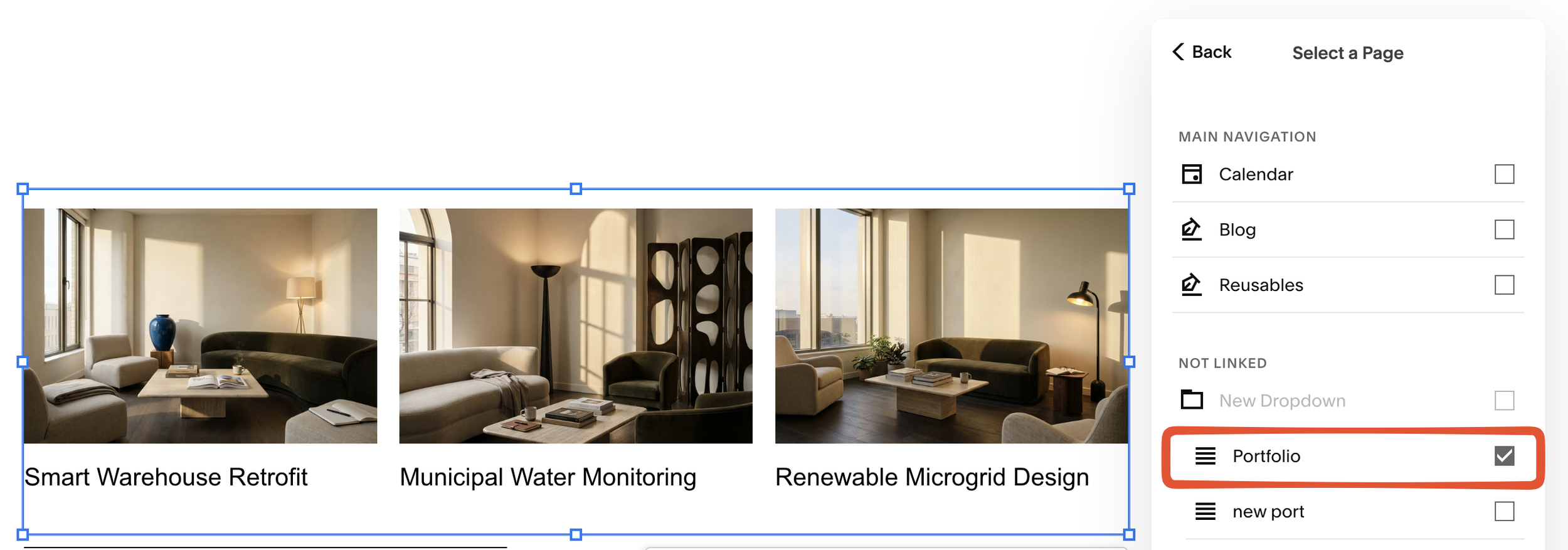
Add Portfolio collections to Summary block
By default, Squarespace’s Summary block restricts you to pulling items from Blogs, Stores, Events, or Videos—leaving Portfolio collections locked out.
Select any Portfolio collection: Open a Summary block, go to Content → Select a Page, and pick your Portfolio collections directly alongside your other site pages.
Full layout control: Showcase client case studies and visual projects using native Summary carousels, grids, masonry walls, and lists across both Fluid Engine and Classic sections—without maintaining duplicate blog feeds.
2. Form Block site-owner Default & recipient switch
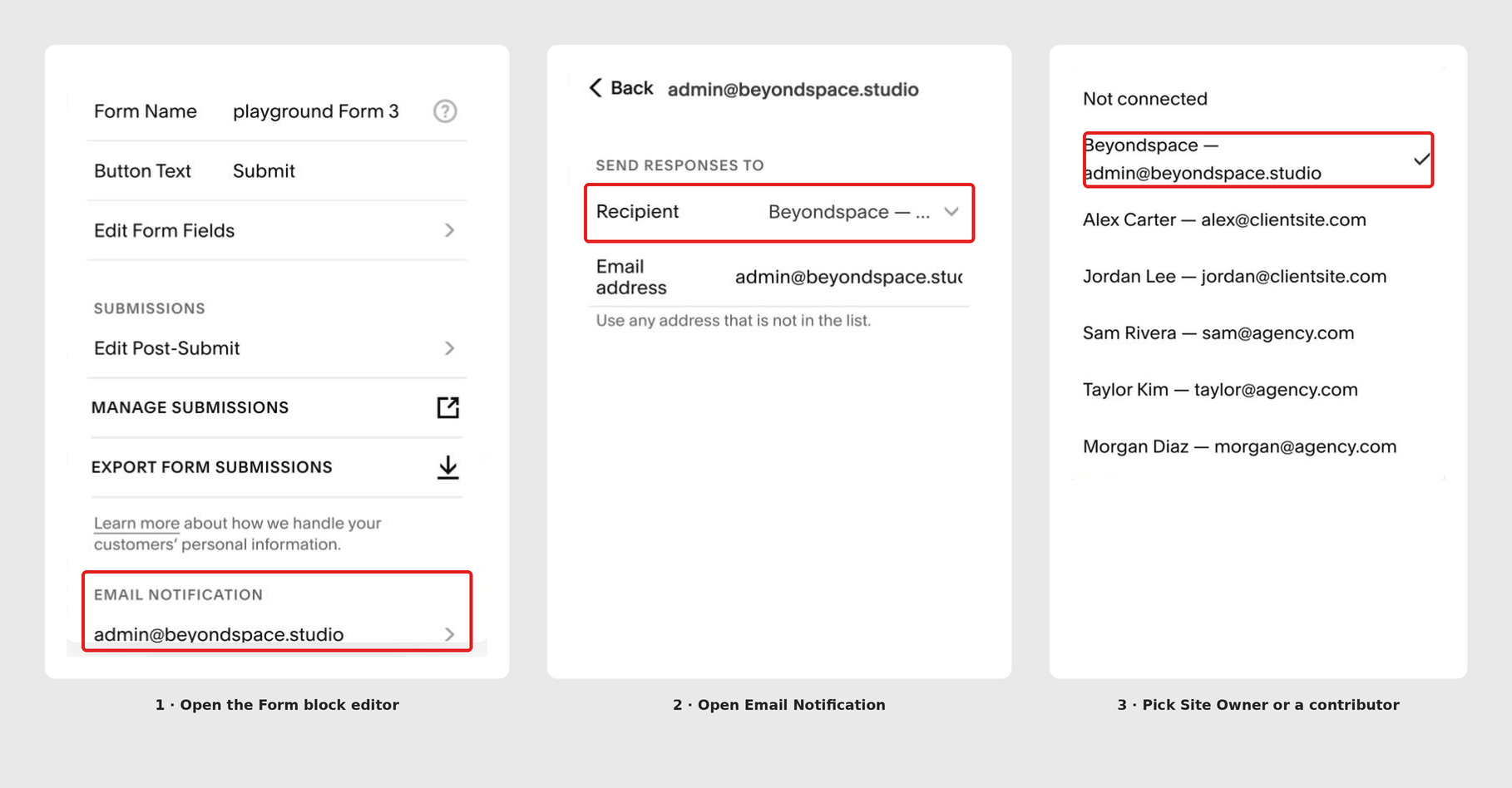
Change form block recipient dropdown
When you build client sites or sell templates on Squarespace, dropping a brand-new Form block onto a page silently assigns your logged-in contributor email as the notification recipient. Missing even one form before handoff means client inquiries end up in your agency inbox instead of theirs.
We added two direct fixes under Storage → Email Notifications inside the Form block editor:
Site Owner Default on Brand-New Forms: Whenever you insert a fresh Form block onto a page, the Site Owner's email is automatically assigned as the default recipient instead of your logged-in admin/contributor account. (Note: Because of how Squarespace handles block duplication, duplicated forms or duplicated sections still fall back to your logged-in user email—which you can fix in one click with the dropdown below.)
One-Click Recipient Dropdown: Under Send Responses To, a new Recipient dropdown lets you quickly switch between site contributors and the Site Owner without hunting down and copy-pasting email addresses. If you need to route submissions to an external address, the standard Email address field right below still lets you enter any address manually.
3. Classic Gallery Block (Restored for Squarespace 7.1)
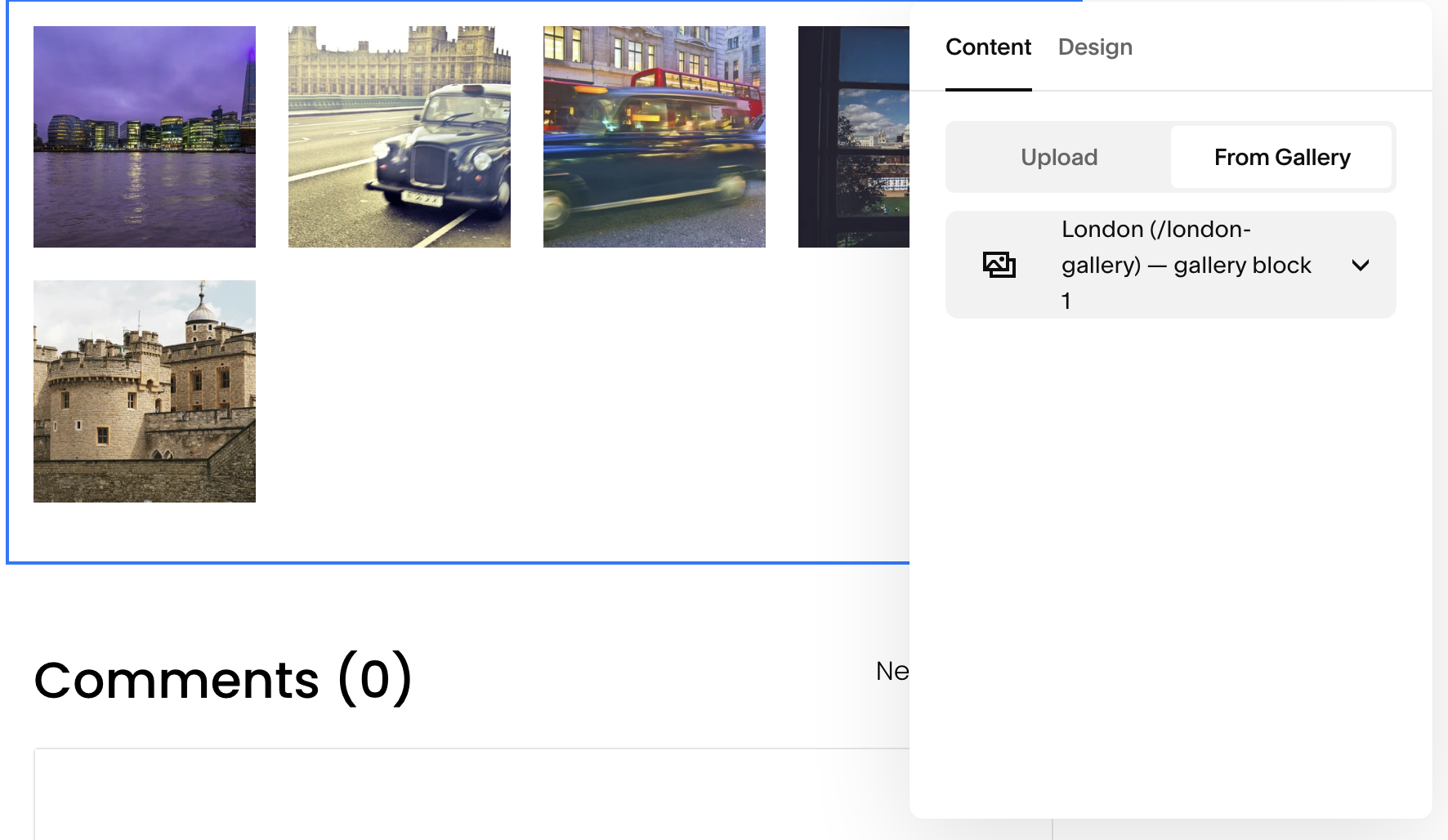
Use existing galleries on Squarespace 7.1
Squarespace’s newer block editor removed the ability to easily insert standalone Classic Gallery blocks and reuse existing site galleries.
Native Add Block support: Drop a Classic Gallery block directly onto any Fluid Engine or Classic section.
Use Existing Galleries: Restores Content → From Gallery, allowing you to pull images from existing gallery collections across your site without re-uploading assets one by one.
4. Native Custom Blocks Inside the "Add Block" Drawer
Instead of configuring plugins through code blocks or external URL parameters, our core visual blocks now live natively inside your Squarespace Add Block → Beyondspace’s menu with full visual side-panel controls:
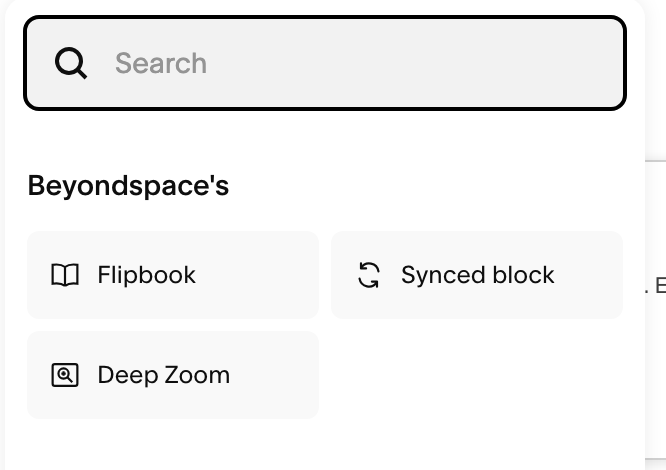
Squarespace new custom blocks
Synced Blocks: Reuse sections, pricing tables, CTAs, and complex layouts across multiple pages in three clicks. Pick your source collection and tag visually - no manual Summary block filtering required.
Paperless Flip (Flipbook Block): Turn PDFs into interactive, page-turning publications directly inside your page layout with visual toggles for themes, dimensions, page-turn sound effects, and download controls.
Macroom Viewer (Deep Zoom Block): Embed ultra-high-resolution artwork, maps, and detailed product schematics with smooth, tiled multi-scale zooming right on the canvas.
