Squarespace Finally Added Form Logic: How to Use Follow-Up Questions
For years, one of the most requested features from the Squarespace community has been conditional logic - the ability to show or hide form fields based on a user's previous answer. Until now, you usually needed a third-party plugin or a complex workaround to achieve this.
That has officially changed. Squarespace has rolled out Follow-up Questions, a native way to build "branching" logic directly into your standard Form Blocks.
What are Follow-up Questions?
Follow-up questions are a native Squarespace feature that allows you to create dynamic forms where specific fields only appear after a visitor selects a certain response. By hiding irrelevant questions until they are triggered, you keep your forms clean, significantly reduce "form fatigue," and ensure you only collect the precise data you need.
How to Build a Branching Form in Squarespace
Based on the latest updates and recent walkthroughs, here is how you set up your first logic-based form:
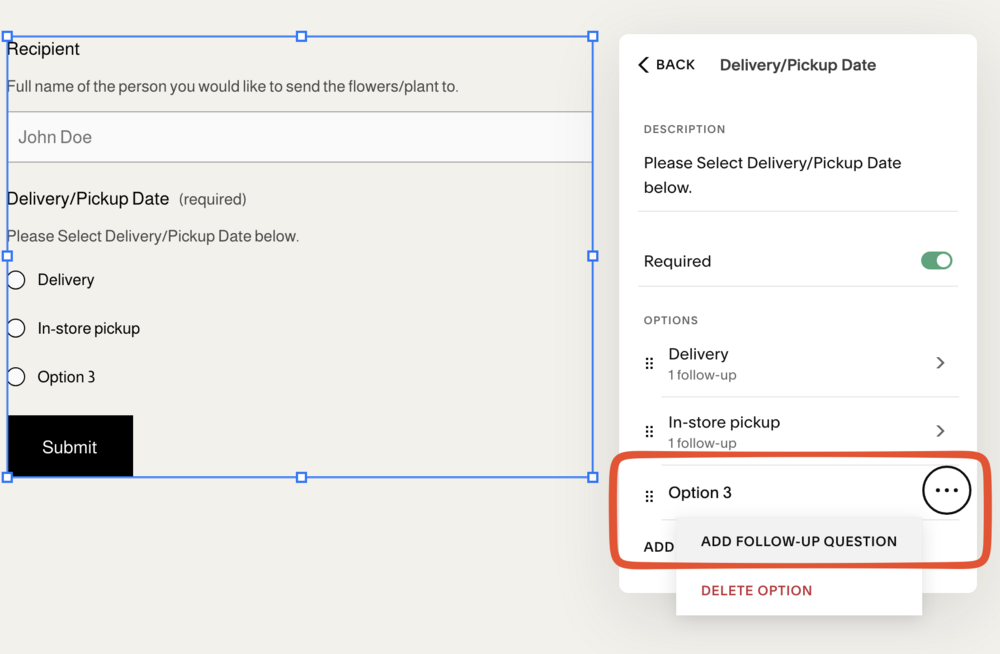
Squarespace follow up questions
Select Your Trigger Field: Add multiple choice fields in your form, like a dropdown, checkbox, radio, or survey. These are the field types that currently support follow-up logic.
Access the Logic Menu: Click the three dots (...) next to a specific response option within that field.
Add the Follow-up: Select "Add follow-up question." Choose the field type you want to appear (like a text box for "Please specify") and customize it.
Stack Your Logic: You can add multiple follow-up questions to a single option if you need to collect several pieces of information based on one choice.
The video below showcases an example of a Delivery/Pickup datepicker switch using the Squarespace Datepicker plugin
Limitations to Know
To keep your implementation smooth, keep these constraints in mind:
One Level Deep: You can add multiple questions to an option, but you cannot create a "follow-up to a follow-up." If you need deep, multi-step nesting, you may still need a dedicated tool builder like Jotform.
Storage Behavior: Your email notifications will only show the answered follow-ups. However, if you use Google Sheets or Mailchimp for storage, Squarespace will include columns for all possible follow-up questions (they will simply remain empty if the visitor didn't trigger them).
Compatibility: This feature is exclusive to the standard Form Block. It is not currently available in Newsletter Blocks, custom Product Forms or Checkout Form.
“💡 Fun Fact: Before this was a native feature, “Conditional Logic” was available as a plugin developed by Squarepaste.com. Now that Squarespace has officially integrated this logic into the core platform, the Squarepaste team has retired their plugin. It’s always great to see the platform evolve to meet user needs!”
Frequently Asked Questions
Question: Does Squarespace have built-in form conditional logic?
Yes. Squarespace now includes built-in "Follow-up" logic for all Form Blocks. This allows you to create dynamic contact forms, detailed surveys, or event registrations where fields appear based on the user's previous selections.
Question: Can I add branching logic to my existing Squarespace forms?
Absolutely. You don't need to rebuild your forms from scratch. You can simply edit any existing Form Block, select a compatible field (Dropdown, Radio, Checkbox, or Survey), and begin adding follow-up questions immediately.
Question: Are Squarespace follow-up questions available for Custom Product Forms?
Currently, native follow-up questions are limited to the standard Form Block. They are not yet supported in "Custom Product Forms" (the forms that pop up when a customer clicks 'Add to Cart'). If you need branching logic for product customizations, you may still require a professional plugin or a third-party form provider.
Question: Is the Squarespace Datepicker plugin compatible with these new follow-up questions?
Yes. Our Squarespace Datepicker is fully compatible with the 2025 Form Block update. You can set the Datepicker to appear as a follow-up question—for example, only showing the "Select Delivery Date" field if the user first selects "Shipping" from a radio button menu.