When I’m writing tutorials or documenting features, adding a screenshot to a Squarespace page usually breaks my flow: take a screen capture, save it to disk, click Add an Image, hunt through Finder for the latest screenshot file, upload it, and clean up the clutter afterward.
I built Import from Clipboard to remove those extra steps. Take a screenshot or copy any image to your clipboard, and drop it straight into a Squarespace Image block.
How to Import from Clipboard
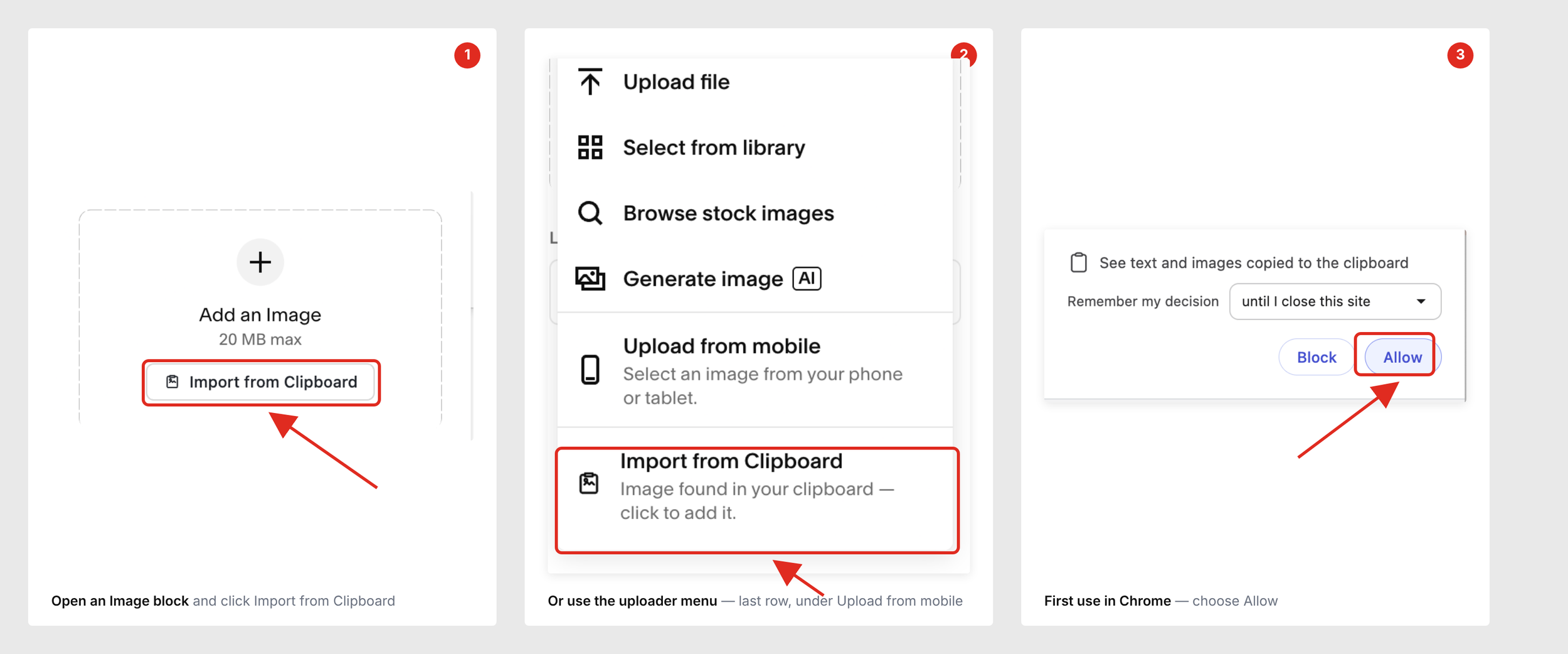
Click an Image block to open its editor.
Paste or click to import using whichever method fits your workflow:
Keyboard shortcut: Press Ctrl + V (Windows) or ⌘ + V (Mac).
Empty block button: Click Import from Clipboard right inside the empty Image block canvas.
Uploader menu: Open the image uploader dropdown and select Import from Clipboard at the bottom row (right under Upload from mobile).
First-time permission (Chrome & Edge): On your first click, allow "See text and images copied to the clipboard" when prompted.
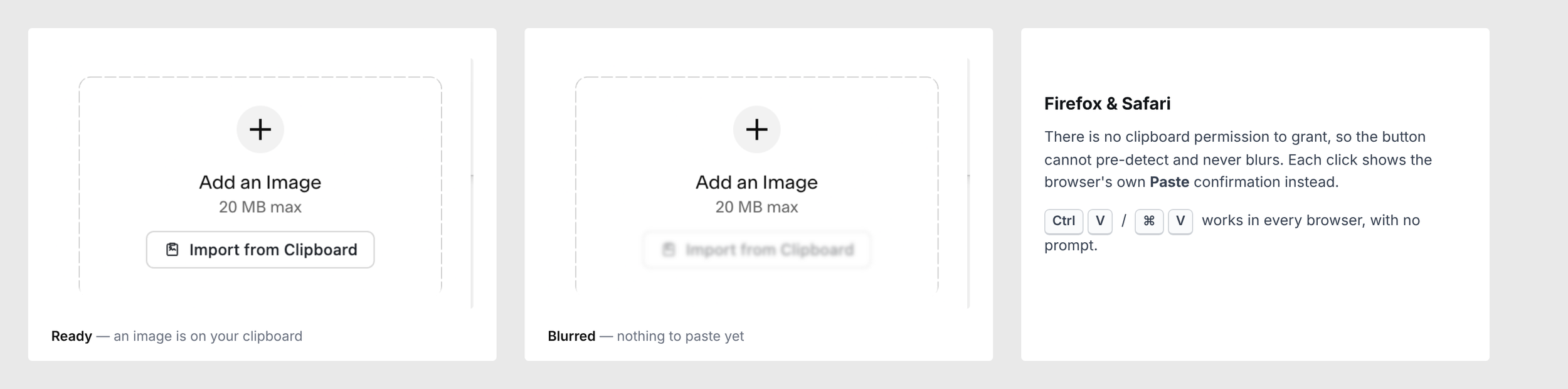
Once imported, the image uploads directly into your Squarespace Asset Library just like a standard file upload - so Undo, Save, and asset reuse all work normally.