The AccessiYes Accessibility Widget is a lightweight, easy-to-install tool that helps make your website more accessible and enhances user experience to support major accessibility standards, including WCAG 2.1, ADA, and EAA. This guide provides clear, step-by-step instructions to help you integrate AccessiYes on your Squarespace website.
AccessiYes is provided for free
Step 1: Get Your Widget Code
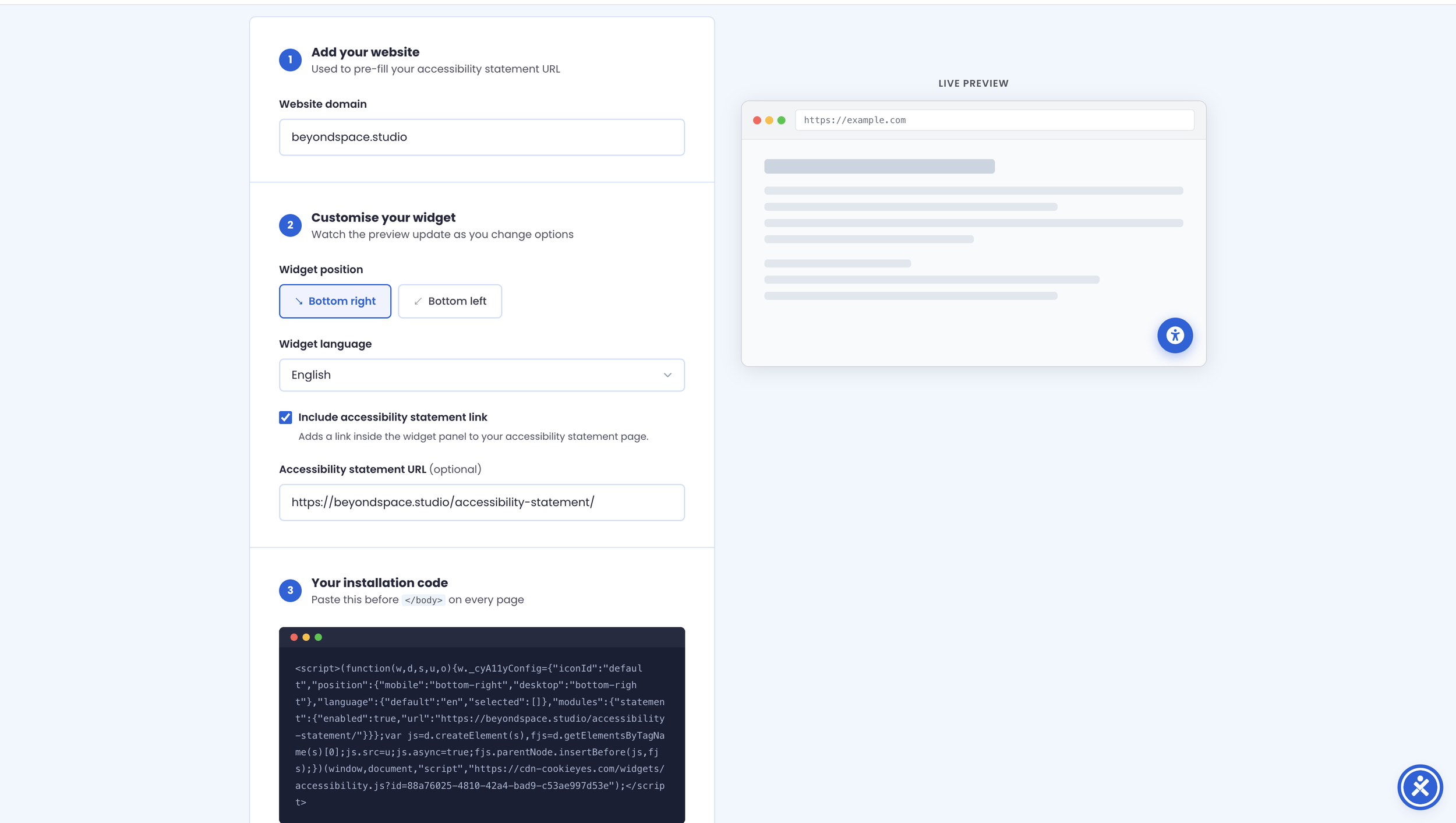
Get AccessiYes Accessibility widget code
Go to the AccessiYes homepage.
Enter your website domain.
Customize your widget settings:
Choose the widget position (bottom left or bottom right).
Choose the widget language.
Add a link to your website’s accessibility statement (optional).
Click Copy Installation script, the plugin is free to install on Squarespace
Step 2: Add Script to Squarespace
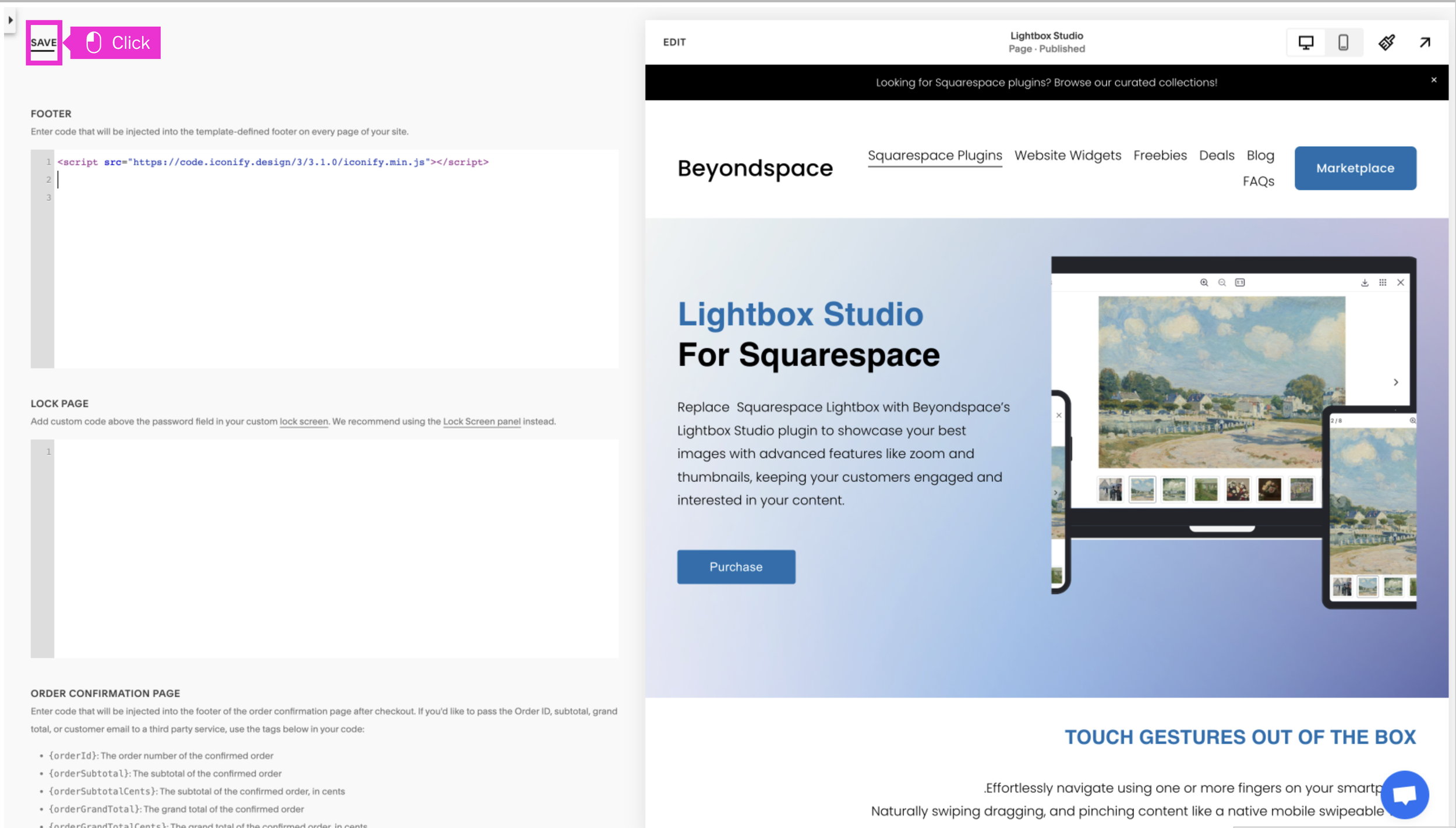
Add AccessiYes Accessibility widget code
Visityour Squarespace admin dashboard via the /config screen.
ClickWebsite -> Pages -> Custom Code (under Not Linked navigation) -> Code Injection.
Paste the script into Footer code injection
Verify Installation
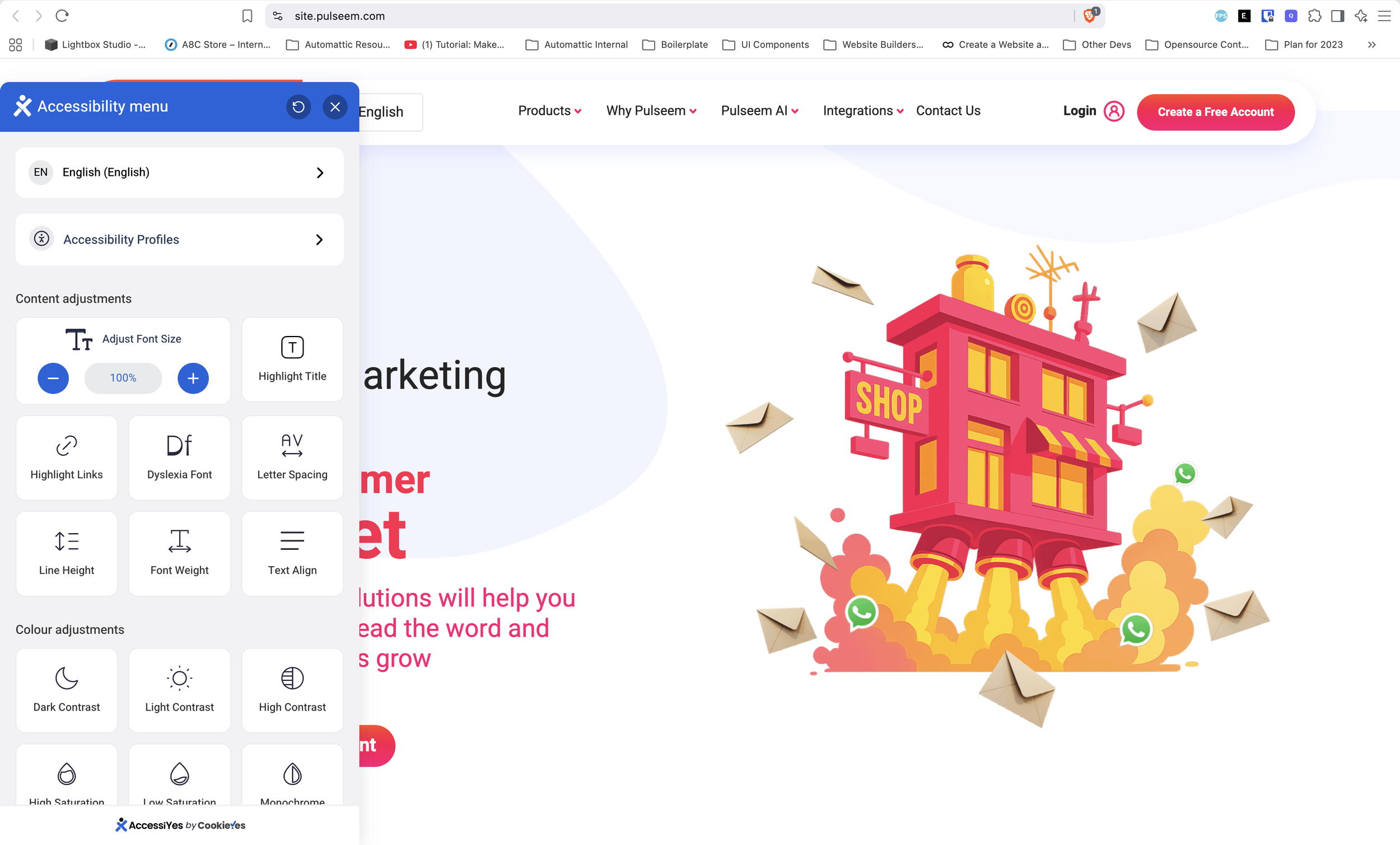
Accessibility widget on Squarespace
After completing the installation, open your website in a new browser window to verify that the AccessiYes accessibility widget appears. If the widget does not display:
Double-check that your installation code was pasted completely without missing tags.
Ensure JavaScript is not blocked by your browser, ad blockers, or active browser extensions.
Clear your browser cache and refresh the page.
⚠️ Important Note on ADA Compliance & Legal Protection
While the AccessiYes widget provides valuable front-end usability adjustments for visitors with visual, motor, or cognitive needs, installing an overlay widget alone does not offer full legal immunity or guarantee complete ADA/WCAG compliance.
Automated overlays improve surface-level accessibility, but true compliance also depends on your site's underlying structure. For maximum accessibility and legal risk mitigation:
Combine AccessiYes with good design practices (e.g., descriptive image alt text, proper heading structures H1–H3, and strong color contrast).
Regularly audit interactive elements, custom forms, and navigation to ensure full screen-reader and keyboard compatibility.