How to upload and embed flipbook on Squarespace
Static PDFs are often a conversion killer - forcing visitors to download files or navigate away from your site breaks the user journey. Paperless Flip transforms those static documents into native, interactive, page-turning experiences. Whether you’re deploying a seasonal catalog, a high-end portfolio, or a technical brochure, you can now host and render everything directly within your Squarespace environment.
This guide walks you through every step — from uploading PDF to Squarespace to insert Paperless Flip embed code to it becoming a flipping book
Before You Start
Before embedding a flipbook, make sure you have the following ready:
Squarespace Business Plan or higher — Required for the Code Block.
Paperless Flip Plugin — Installed on your site (either the One-Time or Yearly version).
Your PDF file — Keep it under 20MB (Squarespace’s native file limit).
Step 1: Upload your PDF to Squarespace
Since Paperless Flip doesn't require external hosting, you’ll upload your PDF directly to your Squarespace link editor.
Open any page on your site and click Edit.
Add a Text Block (you can delete this later, we just need it to access the file uploader).
Highlight some text, click the Link icon, then click the Gear icon (Settings).
Go to the File tab and click Upload File.
Select your PDF from your computer. Once uploaded, it will appear in the list with a checkmark.
Step 2: Copy your PDF URL
Once the file is uploaded, you will be able to grab its link
In the same File tab, click in the name of your PDF
Click Copy in the new link, it can be like https://www.beyondspace.studio/s/UserManual_2025-Envirosun_TSA4.pdf
Now you can delete the link as we only use it to grab the file URL
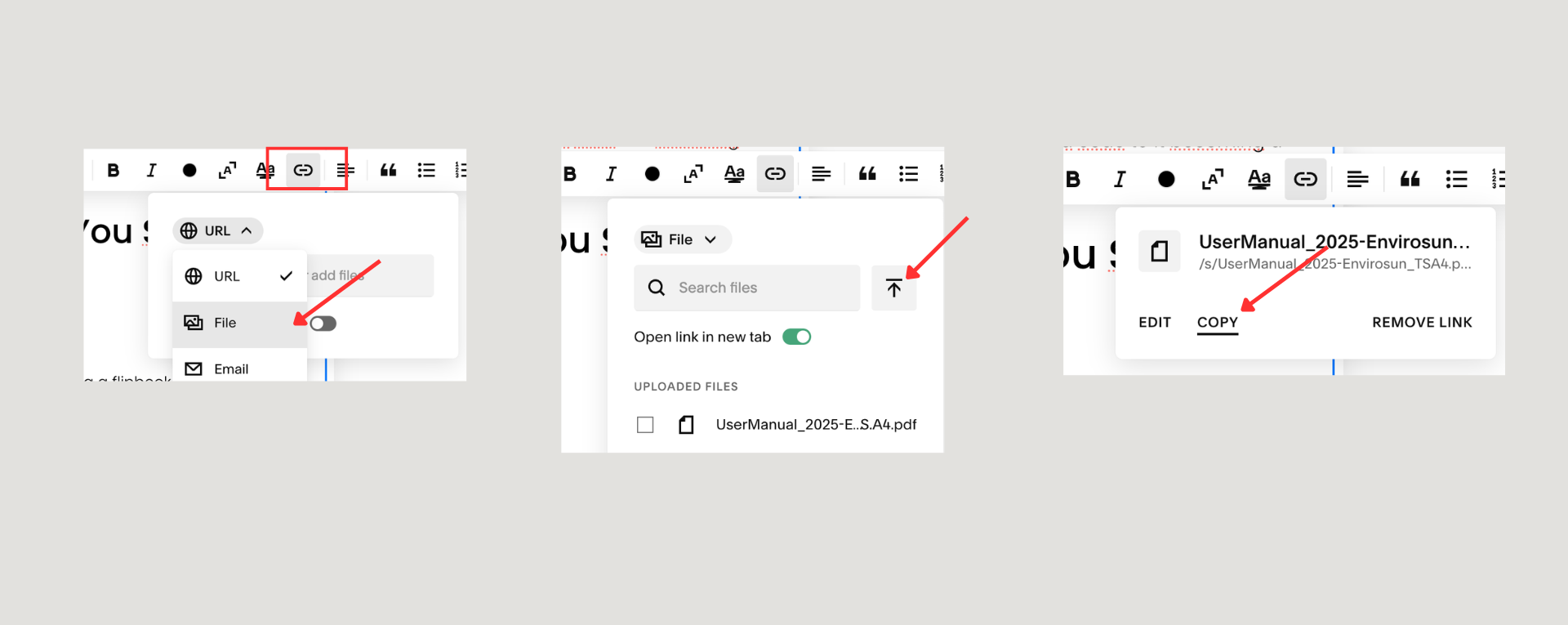
Update PDF to Squarespace
Step 3: Embed the Paperless Flip Code
Now, we tell the plugin which file to turn into a flipbook using a simple HTML snippet.
Hover over the section where you want the flipbook and add a Code Block.
Paste the following Paperless Flip snippet into the block:
<div class="sqs-block-paperlessflip"
     data-file=PASTE_YOUR_URL_HERE
     data-theme=light
     data-bg-color=transparent
     data-bg-image=YOUR_CUSTOM_BACKGROUND_URL
     data-width=100%
     data-height=80vh
  >
</div>
The Critical Part: Replace PASTE_YOUR_URL_HERE with the URL you copied in Step 2
Configuration Options:
data-theme: Support light/dark
data-bg-color: This changes the background color of the flipbook, accepts
transparent - make the background color of the flipbook transparent
Hex code (e.g., #f0f0f0) - plain color as background
data-bg-image: This changes the background image of the flipbook, accepts
Image URL (e.g., https://example.com/bg.png) - use a custom image as flipbook background
data-height: Adjust this to define how much screen space you want it to take (600px, 80vh…)
data-width: set the width of the viewer, recommend 100%
data-download: set to false to hide the download button
Step 4: Save and Preview
Making sure "Display Source" is unchecked in the Code Block settings.
Click Save and Exit the editor.
Refresh the page. Your PDF should now render as a paper-like flipbook!
Troubleshooting & Common Fixes
The flipbook isn't rendering
The most common culprit is the "Display Source" toggle. Inside your Squarespace Code Block settings, ensure this is unchecked. If enabled, Squarespace treats your Paperless Flip snippet as plain text instead of executing the viewer engine.
The viewer shows a blank frame
First, verify your Squarespace plan; custom code execution requires a Business or Commerce plan. Second, double-check your data-file URL. It must be a direct link to the PDF (usually starting with /s/ or static1.squarespace.com). Redirect links or expired file paths will cause the engine to fail.
Pro Tips
Place flipbook to full-width element. A flipbook needs room to breathe - avoid narrow columns or sidebars where the page-turning animation might feel cramped.
Optimize the height: If you aren’t using a responsive wrapper, set your data-height to at least 600px or 80vh. This ensures the text remains legible without excessive scrolling.
Context is Key: Don't just drop the viewer in isolation. Add a clear Heading (H2 or H3) and a brief description above the block to provide context before the user begins flipping.
Create your Flipbook now
Creating a flipbook on Squarespace takes just minutes with Paperless Flip plugin. Upload your PDF, edit the embed code, and drop it into a Squarespace code block — your visitors get a polished, interactive reading experience without leaving your site.