
How to Add a Search Box to Your Squarespace Accordion FAQs
The standard Squarespace Accordion block is a fantastic tool for organizing content. It keeps pages clean, reduces scrolling, and is a staple for FAQ sections. However, once you hit more than 10 questions, that clean layout quickly turns into a scavenger hunt for your visitors.
If a user has a specific question, they shouldn't have to expand every tab to find the answer. Today, I’m diving into a plugin from SQSMODS that solves this beautifully: the Accordion FAQ Search Box.
The Problem: Long faqs section
User experience is really about reducing friction. When a customer lands on your FAQ page, they are usually looking for one specific thing. If they have to scroll through a long list of collapsed tabs, there is a high chance they will give up and email your support team - or worse, leave the site entirely.
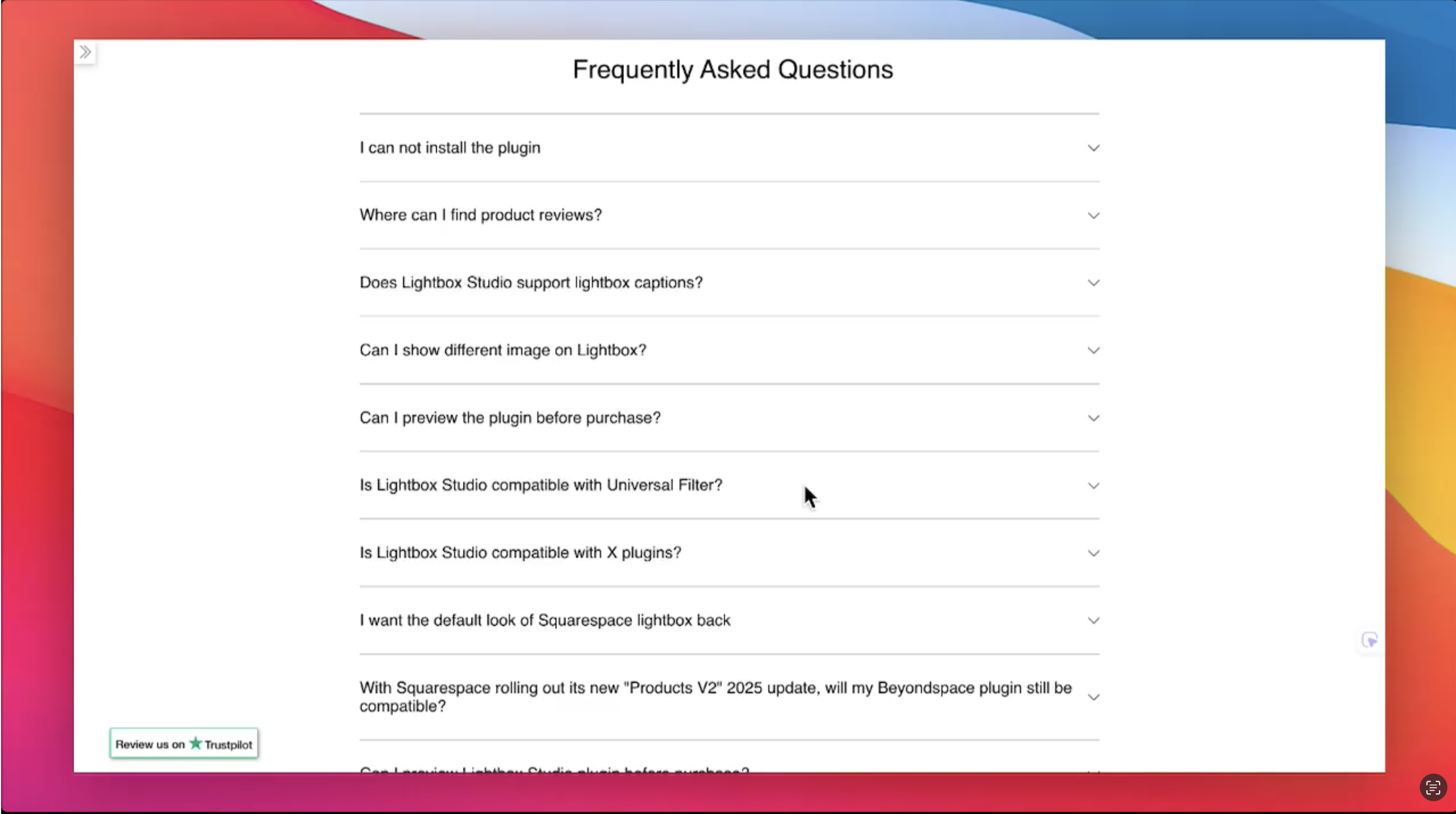
Squarespace accordion block
The Solution: Smart, Instant Filtering
This plugin transforms a static list of questions into a dynamic, smart resource. Here is why it is a great fit for high-traffic sites and documentation pages:
Instant Filtering: As visitors type, matching questions and answers appear in real-time. The non-matching items simply disappear, leaving only the relevant information on the screen.
Keyword Highlighting: The plugin doesn’t just find the right accordion tab; it highlights the exact text match within the answer. This helps the user’s eyes land exactly where they need to.
Smart No Results State: One of the best features is the safety net. If a search doesn’t find a match, you can display a custom message with a Contact Support button. This prevents the user from hitting a dead end and keeps them moving forward.
Relevance Reordering: For complex FAQs, the plugin can actually rearrange the order of your accordions so that the most relevant answers jump straight to the top of the list.
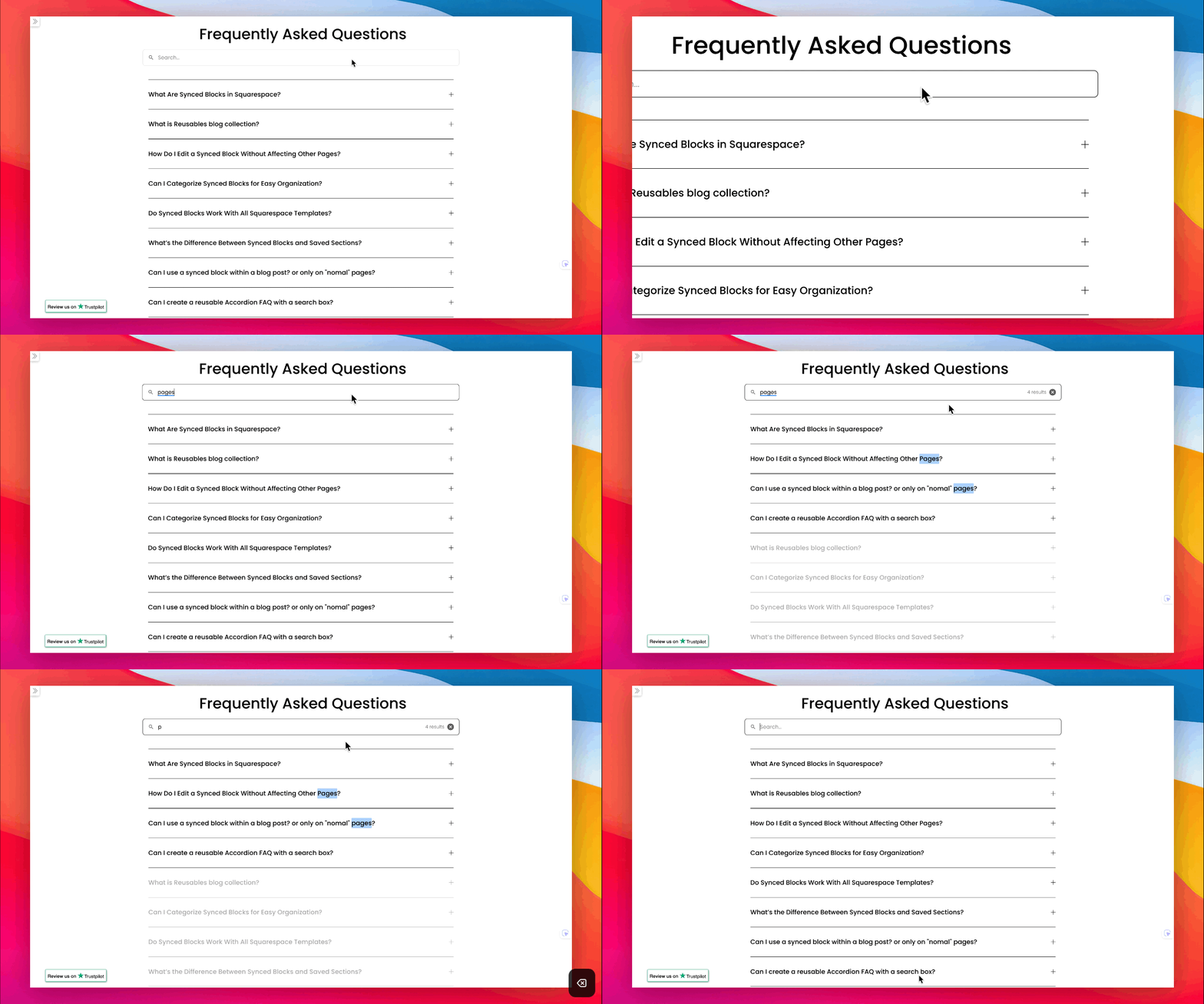
Smart Accordion search box
How to Get Started
The plugin works seamlessly on Squarespace 7.1 and is incredibly easy to set up. Whether you are running a shop with complex shipping rules or a service-based business with a deep documentation library, this is the quickest way to upgrade your site's self-service capabilities.
A Note on Synced Blocks Compatibility
For those of you using our Synced Blocks plugin to manage reusable content across your site, I have some good news. After identifying a minor glitch where the search box failed to initialize on reusable blocks, I've pushed a dedicated fix.
The SQSMODS Search Box is now fully compatible with Synced Blocks. Just make sure you're running the latest version of our plugin to enjoy a seamless experience across your entire site.
Below is a searchable reusable accordion block in action

Synced Blocks, also known as "reusable content" or "reusable blocks," are saved content blocks that you can use across multiple posts and pages in Squarespace. When you edit a Synced Block, all instances of that block across your site are automatically updated.
The Synced Blocks plugin uses a Reusables blog collection to store and manage all your blocks, making it easy to keep your content consistent.
Resuables blog collection is a dedicated collection to store all your reusable content as an individual blog post
By default, you should ensure the Reusables blog’s URL slug is /reusables/
Any change made to Reusables blog post should be persisted via Sync Content button in post settings in order to update across all instance
Reuse your content across site using Summary block that links to Resuables collection
Currently, editing a Synced Block in the Reusables blog will update all occurrences across your site. If you want to keep the original block and make changes for a specific page, you will need to create a new Block for that purpose.
Yes! You can assign categories to your Synced Blocks when saving them to the Reusables blog. This helps organize your blocks, making it easier to manage them as your site grows.
The plugin is now compatible with both Squarespace 7.1 and 7.0 templates, including tested support for Brine and Tremont.
Saved Sections are a Squarespace-native feature that allows you to save and reuse sections of your site. However, unlike Synced Blocks, Saved Sections do not update automatically when changes are made. Additionally, there’s a limit of 50 Saved Sections per site, while Synced blocks can be unlimited.
Synced blocks are ideal for small, repeatable content elements like CTAs or disclaimers, whereas Saved Sections are better suited for larger layout sections like Galleries or Auto Layouts.
Yes! Synced blocks can be insert anywhere support blocks, so it can be inside blog post, even product additional info sections
Yes! You can combine the SQSMODS Accordion Search plugin with our Synced Blocks (Reusables collection) to create a single FAQ that can be searched and updated across multiple pages simultaneously.
Pro Tip: We are currently rolling out a compatibility update to ensure the search box initializes perfectly within synced blocks. If you encounter any display issues, simply update to the latest version of Synced Blocks.
Yes! You can activate free trial of Synced Blocks plugin right from your Squarespace dashboard with Ground Control
Free trial allow you preview the plugin’s feature within your site’s Preview for up to 01 synced block. It won’t work on your live site.
Yes! All reusable content is 100% crawlable by search engines. Synced Blocks plugin is designed with SEO in mind.
Squarespace doesn’t offer a native global form-settings panel. Every Form block has its own storage, notification email, and subject configuration, which becomes painful when you manage many forms or migrate from tools like Mailchimp.
The Solution: Use Synced Blocks to create a single master form in a Reusables blog and reuse it everywhere. When you update storage, the notification email, or a special “Subject” field in the master form, all synced instances across your site follow those settings automatically.
Absolutely! Synced Blocks helps you create the global newsletter and reuse it across pages without reconnect storage settings every time