How to Quickly Access Squarespace Hosted Images and Videos URL
We are thrilled to introduce an exciting enhancement to our Asset Library Enhancer that allows you to quickly copy the URLs of images and videos. This new feature is designed to streamline your workflow and make it easier than ever to access and share your media files.
Image and Video URLs
When you upload an image, video, or other file to Squarespace, it's stored by our content delivery network service providers (CDNs) and assigned a specific URL for storing and retrieving it as a static asset.
While you can insert assets into various places on your site without knowing their URLs—such as Image blocks, Gallery sections, or Product images—there are some cases where you want to use the direct link to the assets. For example, you might want to inject alternate images on mobile devices or display separate images in a lightbox.
If you are wondering how to get an image URL from a file in the Squarespace library, the native system does not provide a direct click-to-copy button. Below, we'll look at the manual workaround to extract these links natively, followed by our one-click shortcut to completely eliminate the hassle.
How to Get an Image URL from a File in the Squarespace Library (Natively)
Currently, there is no built-in way to copy an asset link directly from the dashboard. If you don't have a helper tool installed, finding the native source URL requires a manual browser workaround:
Upload the Asset to your site: You can insert the images into Asset library or via a block
Extract the Link: Choose "Open image in new tab" or use your browser's built-in Inspect Element developer tools to find the static CDN source link (which usually starts with static1.squarespace.com).
⚠️ The Major Catch: While this works for standard image formats, it's incredibly tedious if you have dozens of assets. Furthermore, it is practically impossible to download or extract your uploaded video files using this manual method.

Inspecting Image URLs
Copy URL Feature
The new feature will inject Copy URL buttons into the context menu of images and videos in the Asset Library. As soon as you click it, the URL will be copied to your clipboard, allowing you to use it as you wish.
How to Use the New Copy URL Feature:
First, activate Asset Library Enhancer from Ground Control
Go to your site's Asset Library at
/config/asset-libraryfrom your Squarespace dashboardEnsure the Library Layout is set to List
Click on the Context Menu of Each Row Item to Access the Copy URL Button: For each image or video, click on the three dots (context menu) next to the item to find these
Copy Image URL: This will grab the image link and video thumbnail URL to your clipboard.
Copy Video URL: This will grab the real URL of the video to your clipboard. Note that if the video is not used anywhere on your page, the video URL may not be usable. In such cases, you may see a message indicating that the video is not playable and suggesting you embed the video elsewhere to make the URL accessible.

Copy Sucess message
Images stored in Squarespace CDN can be served as different variants and will be served based on the size of the browser viewing your site, as soon as you get the image url, use url parameter to get the desired resolutions you need: ?format=1000w means 1000 pixels-wide version.
Support variants are: 100w - 300w - 500w - 750w - 1500w - 2500w
Visual Guide:
For Images
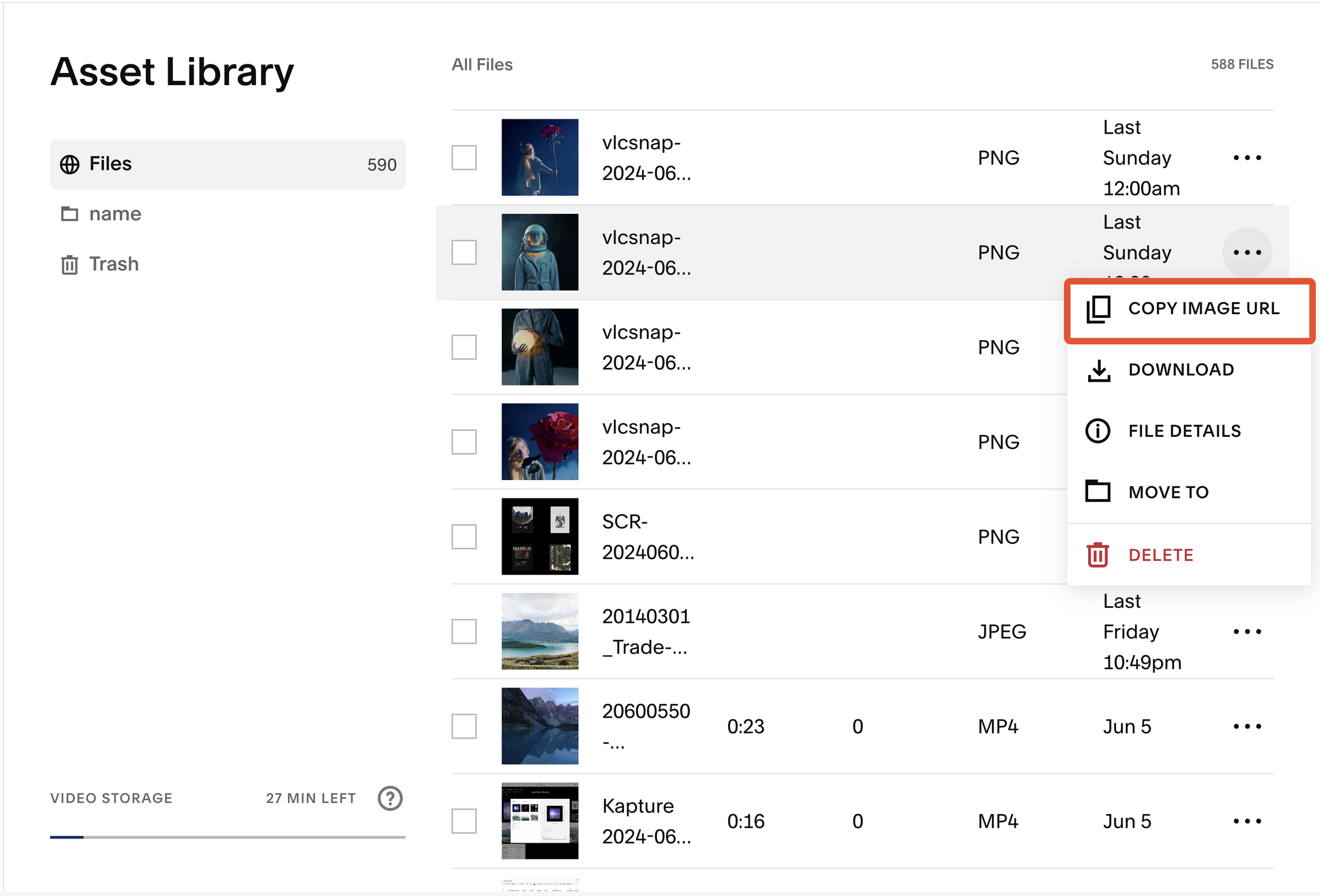
Download image URL button
For Videos
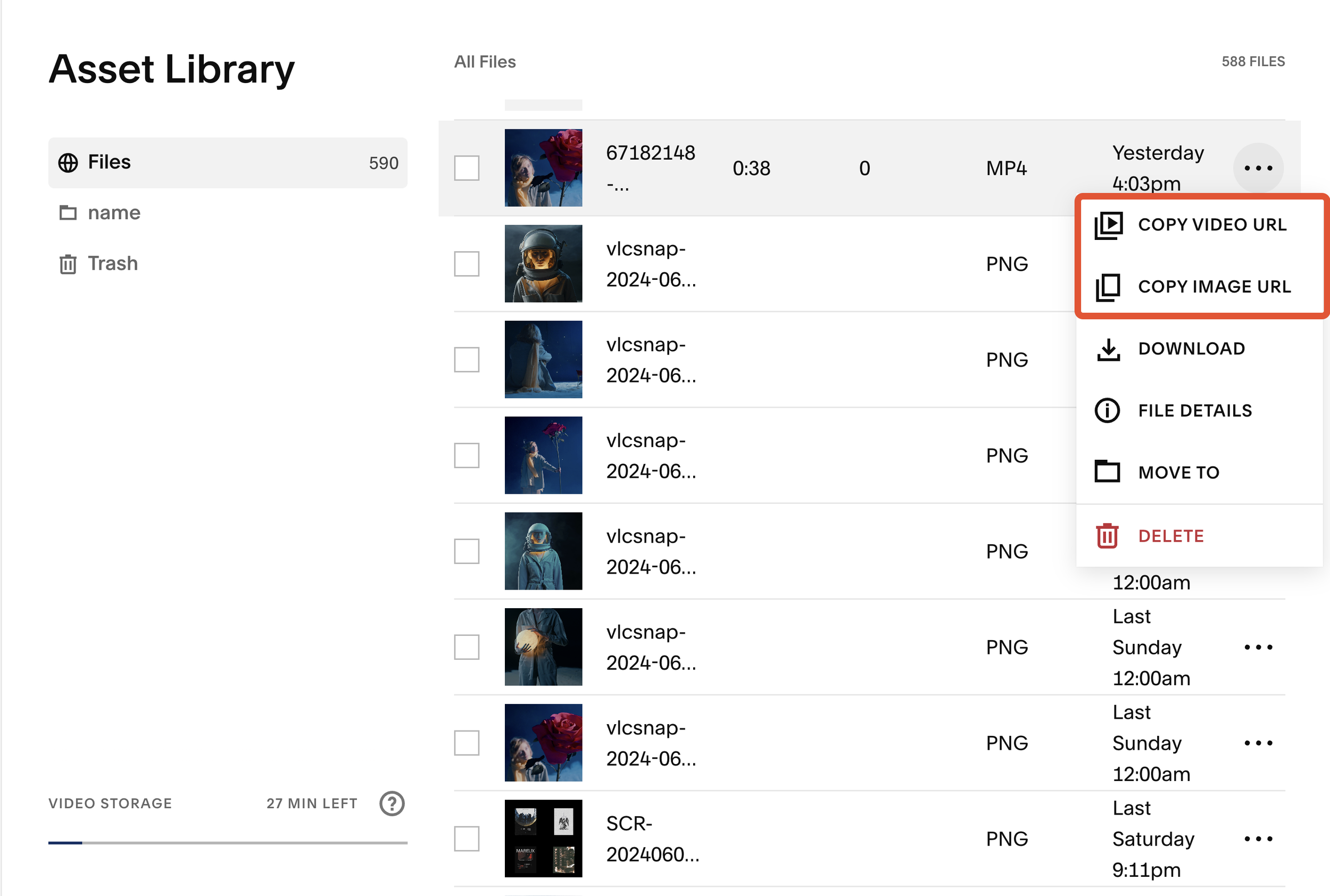
Download video URLs button
Conclusion
Take advantage of this new feature to enhance your workflow. By quickly accessing and sharing URLs for your images and videos, you can save time and improve efficiency.