How to preview Lightbox Studio on your Squarespace website
Our Squarespace gallery lightbox plugin - Lightbox Studio allows you to preview on your site without purchasing so you can check if the plugin is fully compatible with your website before decide to buy it. This post will explore how you can do that with our Playground
How to preview
Method 1: Using Ground Control
Best for: Testing exactly how the plugin interacts with your specific site styles inside the Squarespace Editor.
Step 1: Install and activate our free plugin, Ground Control.
Step 2: Open your Squarespace Dashboard and locate the Ground Control icon on the top left corner.
Step 3: Find Lightbox Studio (Free Trial) and toggle it to Enable.
Step 4: Refresh your preview. You can now see the plugin working as you edit your site!
Note: In Trial mode, the plugin only renders in your private preview; it will not appear on your live site until a license is activated.
Method 2: Using Playground
Step 1: First, visit Lightbox Studio page
Step 2: Next, scroll down to the Site Preview input

Step 3: Type in your site URL, for example www.beccajillustration.com/photography
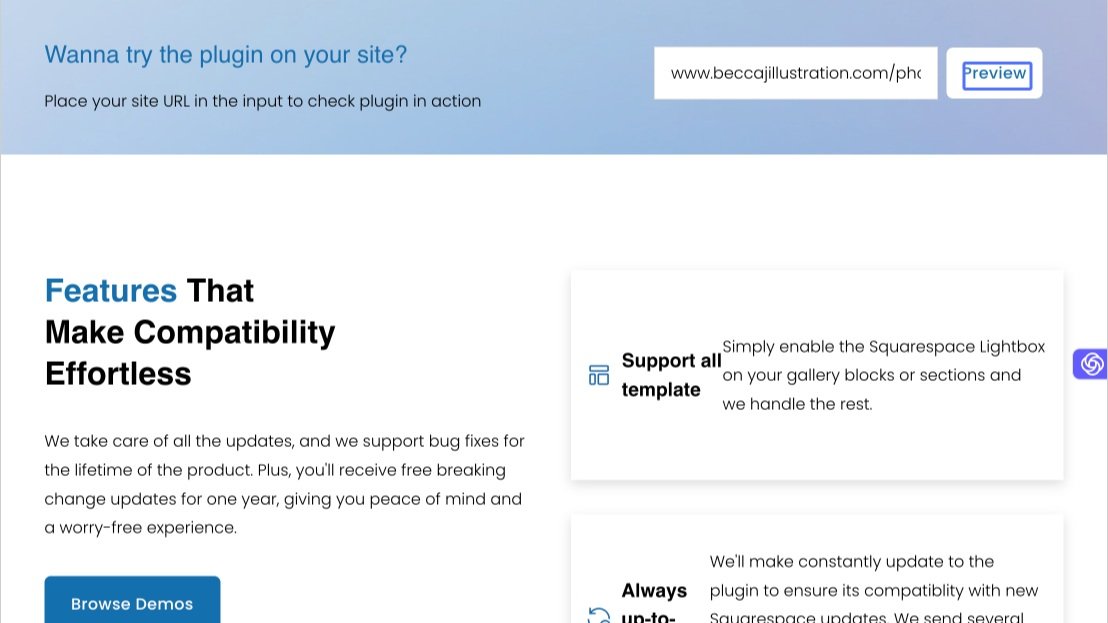
Step 4: Press Preview
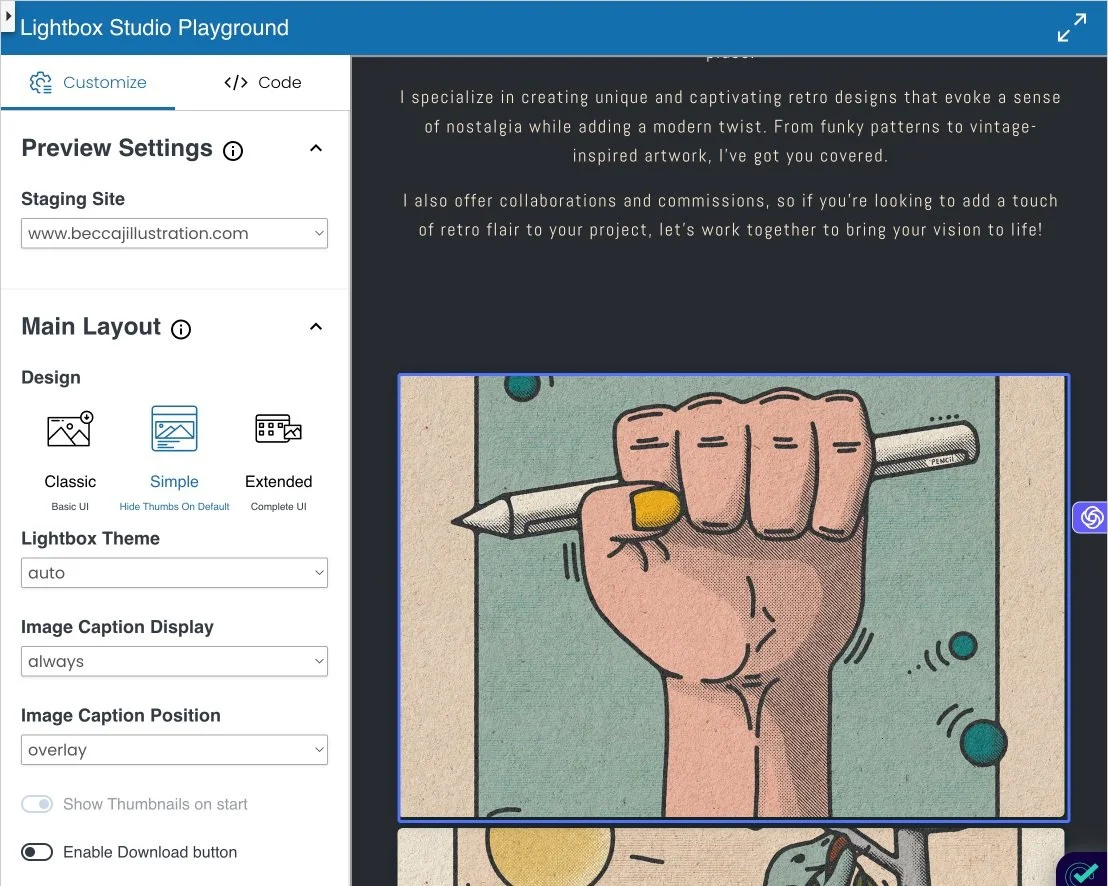
The playground will show up, now you can navigate to your page which has a lightbox-enabled gallery and test the gallery lightbox zoom feature in action. Feel free to change the plugin setting in Customise tab to try all available settings of the plugin.
Frequently Asked Questions
Question: Do I have to install anything to use this feature?
Playground: No installation required. This displays a secure snapshot of your site with the plugin active, without modifying your actual content.
Ground Control: Yes, this method requires installing our free plugin Ground Control. Once installed, it allows you to toggle a trial of Lightbox Studio directly inside your Squarespace editor.
Question: Why can’t I see the plugin when viewing my live site?
Both the Playground and Ground Control are for testing and preview only.
In Ground Control mode, the plugin only renders within your Squarespace dashboard preview so you can check your settings in private.
To make the plugin visible to your visitors on your live site, you will need to purchase a license and activate it.
Question: Why my site did not load?
The Playground is only working for Squarespace websites, so make sure your site is one.
Also your site must be public or password protected, the playground can’t display a private site. In case of password protected site, append an url param to the end of the url. For example of your password is 12345, insert ?password=12345 to the wesite URL in the Preview Input.
Question: I still can’t see my site in the Playground
Contact us to help you check the issue